


TLDR:
Ads and trackers are annoying but an integral part of browsing. But they feel a lot more irritating when you are looking for something important, in a rush, and ads start popping up. But there is a workaround, a privacy browser for Android phones! While there are a lot of them out there, I tested the five most famous, and here’s the truth!
On this page
Introduction to Private Browsing
Private browsing is more than just a buzzword, it’s a vital tool for anyone who wants to keep their browsing data safe from prying eyes. As online tracking and data collection become more sophisticated, using a browser with strong privacy features is essential for protecting your personal information.
Private browsers like the Brave browser and Tor browser are designed with enhanced tracking protection, automatically blocking trackers and minimizing the data websites can collect about you.
These browsers go beyond simply hiding your browsing history; they offer secure connections, encrypting your data as it travels across the internet. Features like fingerprinting protection, script blocking, and cookie isolation help ensure that your online activity stays private, even from real tracking companies and advertisers.
Whether you’re researching sensitive topics or just want to keep your browsing habits to yourself, choosing a browser with robust privacy features is one of the best ways to protect your security and data online.
What Was I Trying to Find Out?
Every browser claims to “block third-party tracking.” But how many actually do it on mobile, without settings tweaks or extensions?
So, I spent a week testing five of the most talked-about browsers, Brave, Firefox, Vivaldi, DuckDuckGo, and Chrome, to see how each handles real-world trackers.
My setup was simple: visit the same 20 sites across news, shopping, and social categories, and record how many trackers each browser blocked automatically.
Within minutes, the difference was obvious; some privacy browsers acted like bodyguards, while others behaved more like spectators.
How I Tested the Browsers?
I cleared the cache, updated all apps, and ran each browser on both Android devices to ensure device-specific privacy protections were accurately evaluated. Here’s what I watched for:
- Whether third-party cookies were blocked by default.
- If the browser flagged or prevented fingerprinting scripts.
- How many ad and analytics trackers were stopped automatically?
- Whether cross-site data requests were cut off in live sessions.
After each test, I checked what device info each browser exposed to websites, using tools like AmIUnique to see how unique my device fingerprint was compared to a global database.
I also used VPN Leak Tests to confirm whether a VPN was effective at hiding my device’s IP address. For comprehensive analysis, I relied on BrowserLeaks to test for IP address leaks, canvas fingerprinting, and font identification.
Features That Truly Make a Browser Block Trackers Well
While testing, I noticed that browsers effective at blocking third-party tracking shared a few features:
- Automatic third-party cookie blocking: No manual setup required.
- Tracker list updates: Regular refreshes of known advertising and analytics domains.
- Fingerprinting protection: Randomizes system identity data like fonts and screen resolution to prevent creating a unique fingerprint.
- Script filtering: Stops invisible trackers embedded in JavaScript, including those from a real tracking company.
- Cookie isolation: Keeps each site’s data in separate containers, often using state partitioning to prevent third-party sharing.
- Live privacy dashboard: Lets users see blocked trackers instantly and may display a privacy score to quickly assess protection.
- Safe Browsing: Protects users from multiple types of threats, such as phishing, malware, and malicious sites.
- HTTPS enforcement: Ensures the browser always uses secure connections.
- Support for privacy standards: Includes features like Global Privacy Control (GPC), which tells sites not to sell or share user data.
- Tracking prevention modes: Blocks cross-site tracking cookies and social media trackers.
- Anti-fingerprinting tools: Help prevent tracking by randomizing unique system information.
- Add-ons and extension support: Especially important for a mobile browser or chromium based browser, allowing users to enhance privacy and functionality.
- Advanced technology: Utilizes AI-driven protections and regular updates to stay ahead of new threats.
- Comprehensive evaluation: Assess browser privacy using built-in features, configurable settings, developer policies, and independent test results to ensure robust protection and control over access to your data.
Browsers missing even one of these features allowed some form of cross-site profiling.
Which are the Best Privacy Browsers for Android?
Here’s where the results separated hype from reality. Some privacy-focused browsers display a privacy score or summary directly on the new tab page, giving users quick access to privacy metrics and information about blocked trackers.
Controlling access to your data is a key differentiator among privacy browsers, as each browser manages or limits access to user information in different ways to enhance privacy and security.
Brave
I gave Brave the first shot since it’s known for treating privacy as a core feature, not an option. The moment I opened it, the clean interface stood out, with minimal clutter, clear icons, and that signature orange lion waiting on the address bar.
As soon as I went to YouTube, Brave displayed a small pop-up showing “2 ads and trackers blocked.” Within seconds, that number climbed to 13. It felt like the browser was actively cleaning up the page as it loaded. Brave blocks ads on YouTube videos, allowing users to watch content without targeted ads.
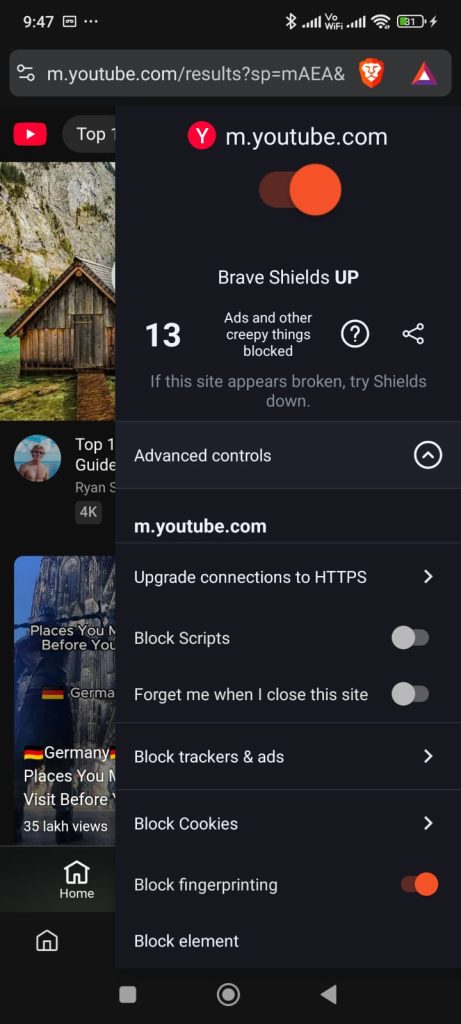
Brave lets users fine-tune privacy controls by blocking ads, cookies, scripts, and fingerprinting on individual sites. Brave’s Shields feature blocks trackers from real tracking companies, including Facebook, to prevent social media profiling.
Brave also offers advanced fingerprinting protections, as confirmed by the EFF’s Cover Your Tracks test, which reports strong protection and a randomized fingerprint.
I tapped the shield icon and saw everything in one neat panel. It lists options to upgrade every connection to HTTPS, block cookies, fingerprinting, and scripts, all switchable with a single tap. There was even a section showing how much data and time it saved, along with the total number of trackers blocked.
Brave supports the Global Privacy Control initiative, telling sites not to sell or share your data. It also supports VPN integration for additional privacy.
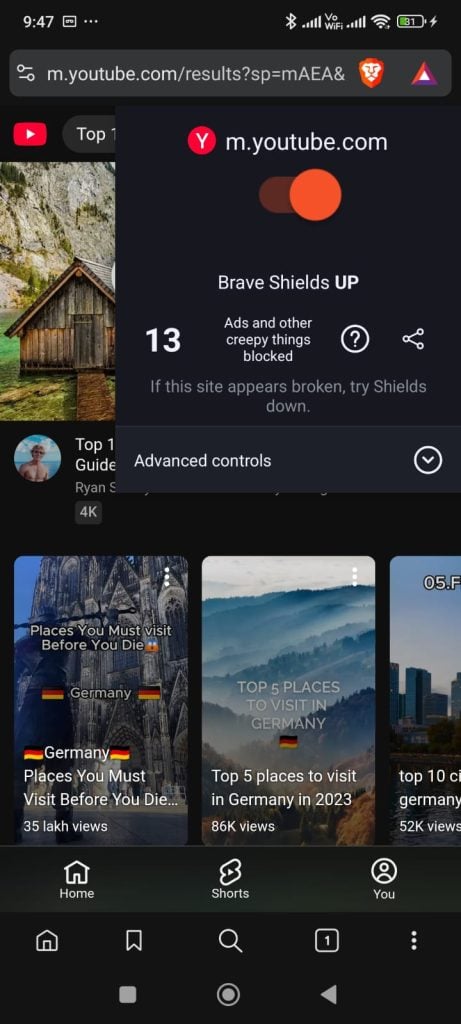
Brave’s Shields feature blocks ads and trackers on YouTube while keeping video playback smooth. Brave is open-source, regularly audited for transparency, and is considered one of the best privacy-focused browsers for Android.
It has a private window mode that uses the Tor Project’s technology for enhanced anonymity. Brave emphasizes ad-blocking and privacy, and even allows users to earn cryptocurrency while browsing.
What I liked most was how visual everything felt. Brave doesn’t hide privacy features; it puts them upfront, with numbers that update in real time. It’s smooth, transparent, and gives you complete control without needing to dig into menus.
DuckDuckGo
I moved to DuckDuckGo next, curious to see how its privacy claims hold up. The interface of this privacy browser for Android looks sharp and minimal; it feels familiar but calmer than most browsers.
Once I opened pages like nytimes.com and telegraph.co.uk, the browser instantly showed that protections were ON, with a small panel listing who it stopped from tracking me.

It displayed big names like Amazon, Google, Adobe, and Chartbeat, all blocked before they could load. Each blocked domain showed up with neat little icons, almost like a visual report card for privacy. The stats were clear: connection encrypted, requests blocked, and everything running smoothly.
I liked how DuckDuckGo also showed what it allowed, not just what it stopped. Some third-party domains were let through to keep the page working, and it even told me why, to prevent site breakage. That level of honesty felt refreshing.
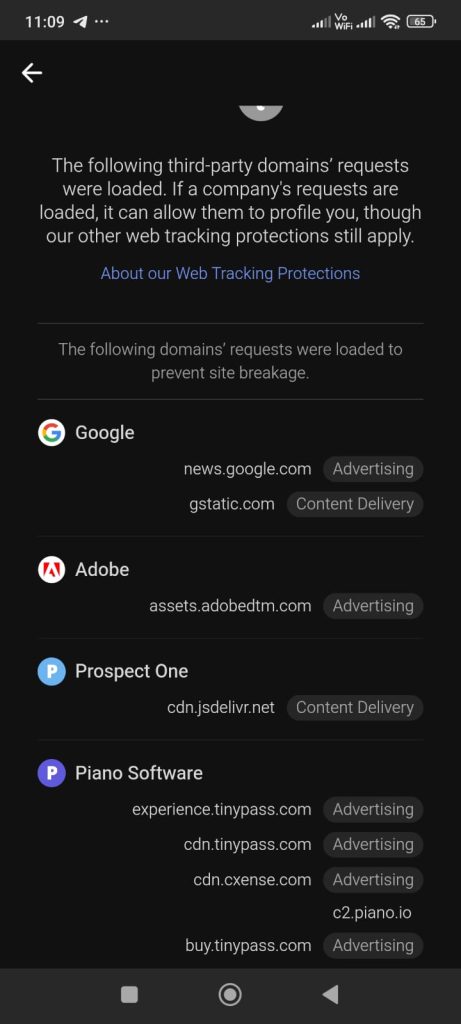
In short, DuckDuckGo’s privacy layer feels balanced. It’s firm where it counts and open about what happens behind the scenes, which gives it an edge for anyone who wants protection without sacrificing usability.
Firefox
I tested Firefox to see how it actually performs as a privacy browser for Android. The Privacy and Security section lists everything clearly: Enhanced Tracking Protection, Private Browsing, DNS over HTTPS, and quick toggles to clear data on exit.
Firefox includes Enhanced Tracking Protection that blocks cross-site tracking cookies, and as a non-Chromium browser, it provides a different privacy profile for Android users.
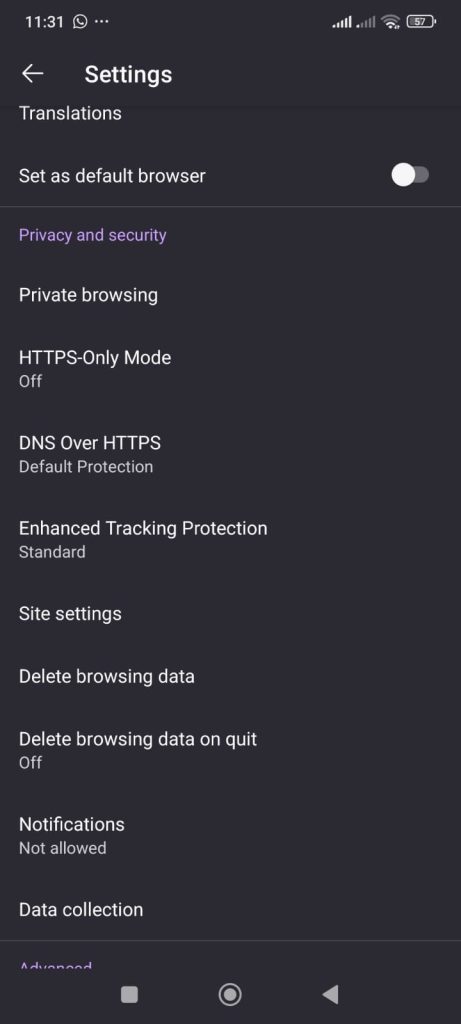
Firefox offers customizable privacy controls, including HTTPS-only mode and enhanced tracking protection. You can further enhance Firefox for privacy with add-ons such as uBlock Origin and Container Tabs. Firefox also supports the Global Privacy Control initiative, which helps prevent sites from selling or sharing your data.
When I opened CNBC, Firefox showed that tracking protection was active and had already blocked one tracker. It also confirmed the site’s connection was secure and let me clear cookies instantly. On another site, it displayed no trackers but flagged the page as not secure.
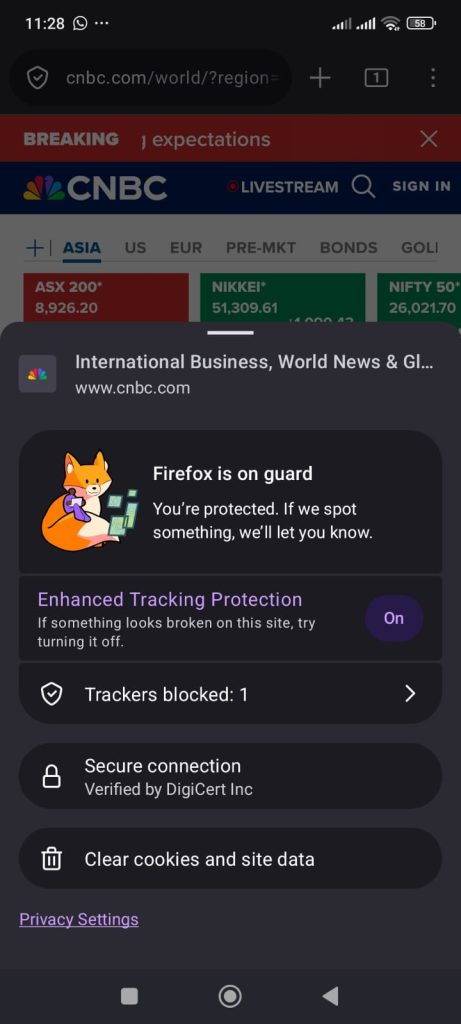
Firefox detects and blocks trackers while maintaining a secure connection, ensuring user privacy on news sites.
It works like a solid privacy browser for Android, direct, transparent, and focused only on showing what’s happening in real time, without unnecessary extras.
Vivaldi
I explored Vivaldi next, a privacy browser for Android built for users who like control over every setting. The setup starts with clear options: No Blocking, Block Trackers, or Block Trackers and Ads. That means privacy isn’t forced; it’s chosen.
Vivaldi is a Chromium based browser, which means it supports many Chrome extensions and add-ons for enhanced privacy and functionality. It also offers a customizable new tab page, allowing users to personalize their browsing experience and access privacy metrics.
Additionally, Vivaldi includes a dark mode for a visually comfortable browsing experience, reducing eye strain and improving aesthetics.

Vivaldi lets users choose between different tracker and ad-blocking levels during setup.
When I opened The New York Times, Vivaldi instantly showed that the connection was secure and that five trackers and four ads were blocked by default. The panel also lets you tweak tracker rules per site.

Everything feels designed for flexibility, built-in ad blocking, encrypted sync, and private search, all without needing extra extensions. If you like tuning privacy rather than accepting presets, Vivaldi does that cleanly and with full transparency.
Chrome
Chrome technically “limits” tracking through its Privacy Sandbox, but in testing, it didn’t block most third-party cookies by default. On the same sites, Chrome allowed between 20 and 25 trackers per page.
You can manually enable stronger blocking, but that defeats the “default protection” test. For privacy-first users, Chrome is still a step behind.
Private Search Engines
A private search engine is a key ingredient in any privacy-focused browsing setup. Unlike traditional search engines that track your queries and serve you targeted Google ads, private search engines like DuckDuckGo, StartPage, and Qwant are built to protect your browsing data.
These search engines don’t store your search history, personal information, or create a profile based on your activity, ensuring your search results remain private and secure.
By setting a private search engine as your default search engine, you can significantly reduce the amount of data collected about you as you browse the web. This means fewer trackers following you from site to site, less personalized advertising, and a smaller digital footprint overall.
For users who value privacy, making the switch to a private search engine is a simple but powerful step toward safer, more secure browsing.
Browser Extensions for Privacy
Browser extensions are a powerful way to boost your browser privacy and take control of your browsing data. Popular extensions like uBlock Origin and Privacy Badger provide advanced ad blocking and tracker blocking, stopping unwanted scripts and trackers before they can collect your information.
Tools like HTTPS Everywhere ensure your connections are always secure, while Cookie Autodelete helps manage and remove tracking cookies automatically.
The Chrome browser and other browsers offer a wide selection of privacy-focused extensions that are easy to install and customize. However, it’s important to remember that not all extensions are created equal—some may collect user data themselves.
To stay safe, always choose extensions from reputable developers and review their privacy policies. With the right set of tools, you can enhance your browser’s security, protect your data, and enjoy a more private browsing experience.
Incognito Mode and Beyond
Incognito mode, available in browsers like Google Chrome and Mozilla Firefox, is often the first step users take toward private browsing. When you open a new incognito window, your browsing history and cookies are deleted once you close the session.
However, incognito mode has its limits, it doesn’t block trackers, hide your activity from your internet provider, or provide enhanced tracking protection.
For users who want true privacy, browsers like the Tor browser and Brave browser offer much stronger protection. The Tor browser routes your traffic through multiple encrypted nodes, making it extremely difficult for anyone to trace your browsing data back to you.
Meanwhile, Brave browser and other privacy-focused browsers provide built-in tracker blocking, ad blocking, and secure connections by default. While incognito mode is useful for quick, local privacy, combining it with advanced privacy features and secure browsers is the best way to keep your data safe from tracking and surveillance online.
A Quick Comparison
| Browser | Trackers Blocked | Ads Blocked | Unique Features Observed | Key Impression |
| Brave | 13 | Included | Real-time blocking display, HTTPS upgrade, fingerprinting, and script control | Most aggressive blocker with a smooth browsing experience |
| DuckDuckGo | 6 | N/A | Tracker transparency with detailed lists, an encrypted connection, and balanced blocking | Balanced privacy with visible transparency |
| Firefox | 1 | N/A | Enhanced Tracking Protection, DNS over HTTPS, instant cookie clearing | Reliable but limited active blocking |
| Vivaldi | 5 | 4 | Custom blocking modes, per-site tracker control, encrypted sync | Flexible privacy customization |
| Chrome | 0 (default) | 0 (default) | Privacy Sandbox, manual cookie blocking | Least private by default; needs manual setup |
Final Verdict
After testing the browsers side by side, the results spoke clearly. Brave recorded the strongest tracker control, blocking 13 elements on average, including ads and scripts across multiple sites.
Vivaldi followed with nine total blocks (5 trackers and four ads), while DuckDuckGo stopped around six tracking attempts. Firefox showed consistent detection, but with fewer active blocks.
Across all tests, pages loaded quicker, intrusive elements disappeared, and browsing felt smoother on browsers with built-in blocking. The key takeaway is that a strong privacy browser for Android makes tracker protection automatic, without extra setup.
It’s important to note that so-called incognito or private browsing modes in mainstream browsers do not provide the same level of privacy as dedicated privacy browsers.
For users seeking the highest level of anonymity and concealment online, the Tor Project’s browser stands out, leveraging onion routing to protect against surveillance and censorship. Additionally, Brave offers a private window mode that uses Tor for enhanced anonymity.
To thoroughly evaluate Android web browser privacy features in 2026, users should combine direct setting audits with third-party diagnostic tools for a comprehensive assessment.
Based on both data and daily experience, Brave leads for complete blocking, while Vivaldi offers impressive flexibility for manual control.
Want to explore more interesting stuff? Feel free to explore our website.
Read more from Cybersecurity
- I Put 5 Android Mobile Browsers’ Privacy Claims to the Test, Here’s the Truth!
- Why Privileged Access Management Is the Crown Jewel of Cybersecurity?
- BitDefender vs. McAfee: Why I switched to BitDefender?
- How to Organize Passwords on Your Computer?
- How to Protect Your Network While Browsing Online
- 6+ tips and tricks on How to secure WordPress site from hackers
- How to secure an iPhone: Superman level protection for your iPhone
- How to secure Android Phone from hackers: Top hacks and tips
- 6+ tips and tricks to secure Gmail account from hackers
